
30.Aug.2023
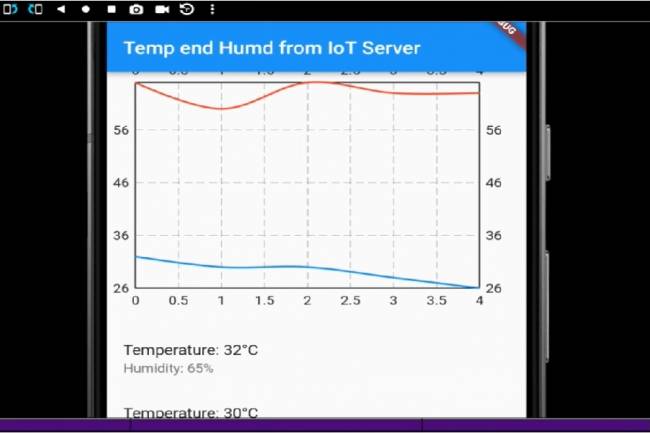
Flutter is an open source UI (User Interface) development kit developed by Google. In this article, we'll cover creating an application that pulls temperature and humidity data from an IoT device using Flutter, graphically visualizes the captured data, and displays it as a list.
You will basically need the following components to build this project:
Flutter SDK: It can be used to develop Flutter applications.
http packet: It is used to pull data from the internet.
fl_chart package: Used to create charts.
Explanation of Flutter-Dart codes:
At the beginning of the code, we import the necessary packages. The http package is used to pull data from the internet, while the fl_chart package is used to generate charts.
In the main() function, we start the application by running the MyApp widget.
The MyApp class inherits the StatefulWidget class. This means that the state of the application can be changed.
The _MyAppState class contains the actual logic of the application. This class contains the necessary methods and widgets to pull, visualize, and display data.
The initState() method is called automatically when the application is started. In this method, the fetchData() method is called and the data is pulled from the internet.
The fetchData() method uses http.get to pull data from the specified URL. When the data is successfully pulled, the JSON data is parsed and the data variable is updated.
The build() method is used to build the interface. In this method, a basic interface is created using the Scaffold widget in MaterialApp.
The LineChart widget is part of the fl_chart package and creates line charts using data.
The ListView.builder widget is used to display data as a list. A ListTile is also created for each item, displaying the temperature and humidity values.
Codes:
import 'package:flutter/material.dart';
 import 'package:http/http.dart' as http;
 import 'dart:convert';
 import 'package:fl_chart/fl_chart.dart';
void main() {
   runApp(MyApp());
 }
class MyApp extends StatefulWidget {
   @override
   _MyAppState createState()=> _MyAppState();
 }
class _MyAppState extends State<MyApp> {
   List<Map<String, int>> data=[];
  @override
   void initState() {
     super.initState();
     fetchData();
   }
  Future<void> fetchData() async {
     final response=await http.get(Uri.parse('http://iot.milivolt.com.tr/fetch_data.php'));
     if (response.statusCode==200) {
       final jsonData=json.decode(response.body) as List<dynamic>;
       setState(() {
         data=jsonData.map((item)=> {
           "deg1": item["deg1"] as int,
           "deg2": item["deg2"] as int,
         }).toList();
       });
     } else {
       throw Exception('Failed to load data');
     }
   }
  @override
   Widget build(BuildContext context) {
     return MaterialApp(
       home: Scaffold(
         appBar: AppBar(
           title: Text('Temp end Humd from IoT Server'),
         ),
         body: Column(
           children: [
             AspectRatio(
               aspectRatio: 1.5,
               child: LineChart(
                 LineChartData(
                   titlesData: FlTitlesData(
                     leftTitles: SideTitles(showTitles: true),
                     bottomTitles: SideTitles(showTitles: true),
                   ),
                   borderData: FlBorderData(show: true),
                   gridData: FlGridData(show: true),
                   lineBarsData: [
                     LineChartBarData(
                       spots: data.asMap().entries.map((entry) {
                         final index=entry.key;
                         final value=entry.value;
                         return FlSpot(index.toDouble(), value["deg1"]!.toDouble());
                       }).toList(),
                       isCurved: true,
                       colors: [Colors.blue],
                       dotData: FlDotData(show: false),
                       belowBarData: BarAreaData(show: false),
                     ),
                     LineChartBarData(
                       spots: data.asMap().entries.map((entry) {
                         final index=entry.key;
                         final value=entry.value;
                         return FlSpot(index.toDouble(), value["deg2"]!.toDouble());
                       }).toList(),
                       isCurved: true,
                       colors: [Colors.red],
                       dotData: FlDotData(show: false),
                       belowBarData: BarAreaData(show: false),
                     ),
                   ],
                 ),
               ),
             ),
             SizedBox(height: 16),
             Expanded(
               child: ListView.builder(
                 itemCount: data.length,
                 itemBuilder: (context, index) {
                   return ListTile(
                     title: Text('Temperature: ${data[index]["deg1"]}°C'),
                     subtitle: Text('Humidity: ${data[index]["deg2"]}%'),
                   );
                 },
               ),
             ),
           ],
         ),
       ),
     );
   }
 }

Mobile programming Fundamentals for Control Applications
Fundamentals of mobile application development for control of electronic systems
05.04.2023
With the Flutter-Dart language, can we write an artificial intelligence program that takes a picture and lists the objects in it?
Flutter-Dart language, artificial intelligence program
06.04.2023
Writing Applications that control Electronic Devices with Flutter-Dart Programming Language
Controlling Electronic Devices remotely
06.04.2023
Controlling Wifi Devices with Flutter-Dart
Control of remote devices with Android apps, Wifi-based control applications
07.04.2023
Developing an Application to Send Data to a Bluetooth-enabled Thermal Printer with Flutter
Mobile app developed with Flutter explains the step-by-step process of sending text to a Bluetooth-enabled thermal printer. Contains information about printer commands and Bluetooth communications
11.01.2024
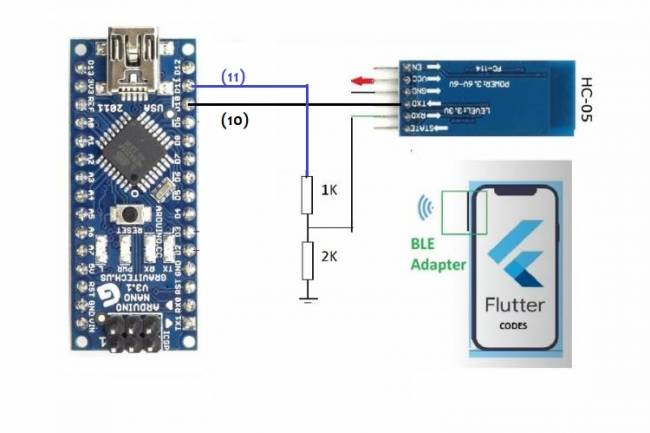
Application Development Example with Flutter and Arduino
Learn to connect mobile devices with embedded systems! In this article, learn step by step how to develop an app using Flutter and Arduino
01.03.2024
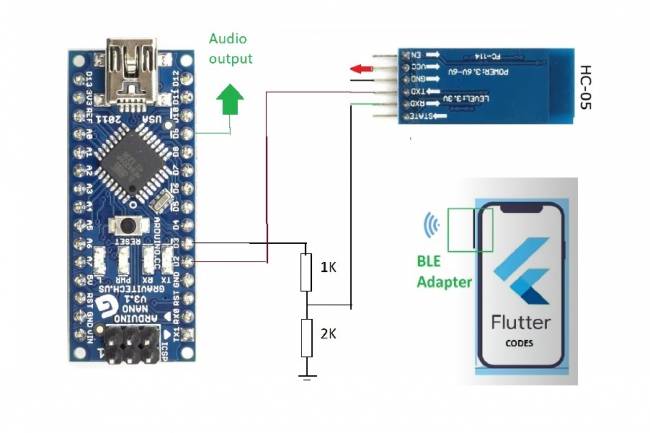
Bluetooth Speaker Project with Flutter - Audio data transfer
In this project we will try to understand how the Bluetooth speaker system is designed and how to develop it. We will examine the basics of Android programming, MCU programming-embedded system design.
24.07.2023
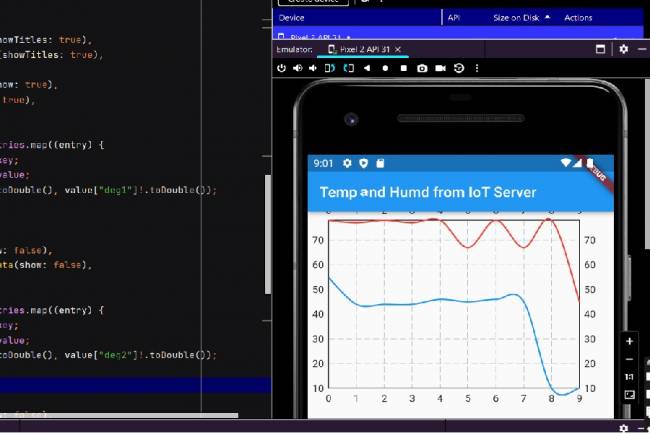
Extracting Data from Database and Creating Graphs with Flutter and PHP
Learn how to pull data from a database and create a line chart using Flutter and PHP
27.08.2023
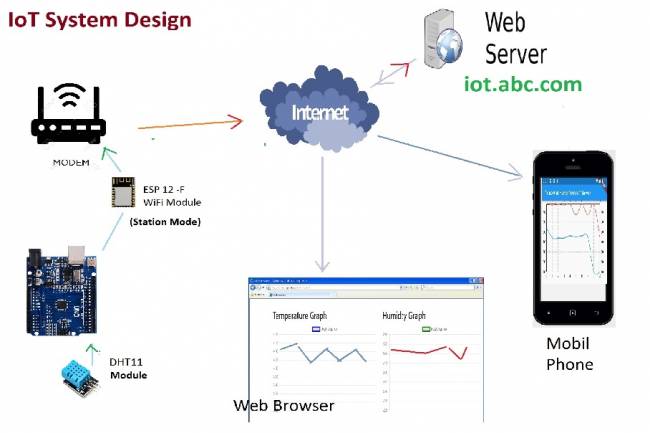
IoT System Design 1 – Temperature and Humidity Monitoring System
IoT system design with ESP 12f. Monitoring of temperature, humidity in web & mobile. Arduino, DHT11 sensor.
30.08.2023
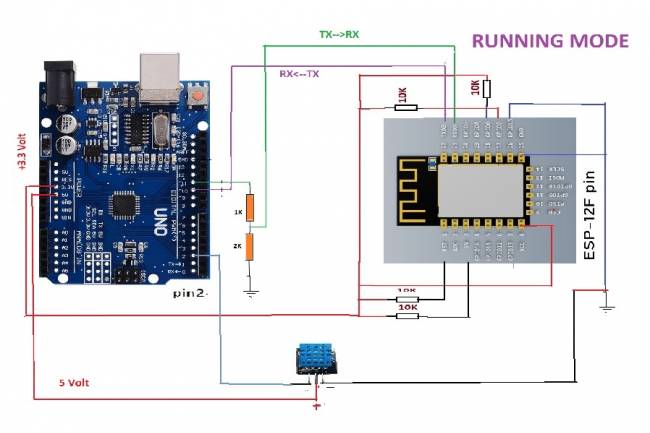
IoT System Design 2- Sending Temperature and Humidity Data to Web Server with Arduino
Learn the steps to send temperature and humidity data from DHT11 sensor with Arduino to web server via ESP 12f
30.08.2023
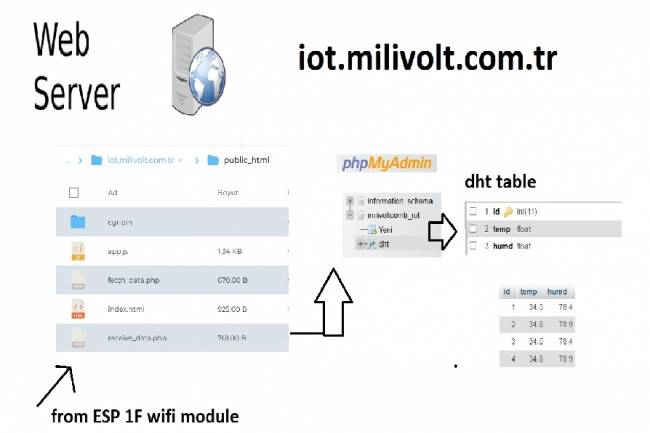
IoT System Design 3- Data Processing on the Web Server Side
Learn to transmit data from DHT11 sensor with Arduino to web server via ESP8266 and save it to database with PHP.
30.08.2023
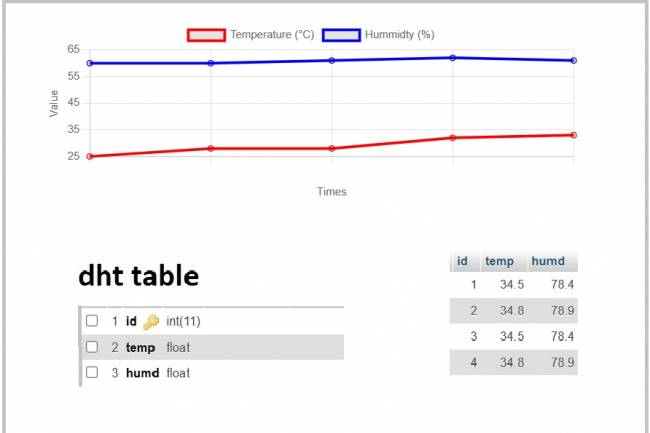
IoT System Design 4- Creating a Web Interface
Learn how data is pulled from the IoT system and used graphically.
30.08.2023
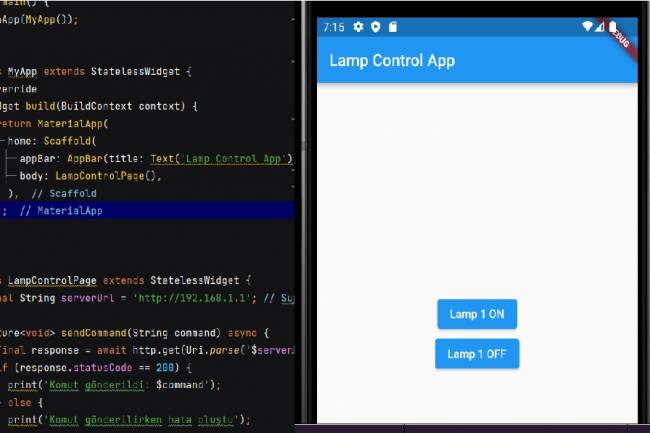
Mobile Application Development for Smart Homes
In this article, you can find the steps and examples of mobile application development using WiFi communication
01.09.2023
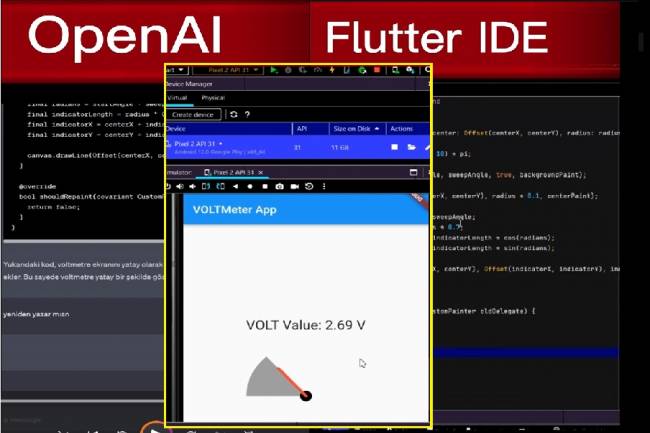
Developing Mobile Applications with Artificial Intelligence – Voltmeter Interface Application
The mobile application developed with artificial intelligence visualizes the microcontroller volt measurement with numerical data.
12.09.2023
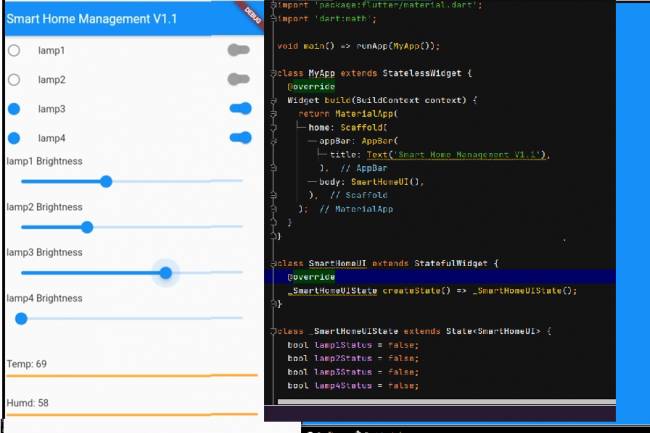
Mobile Application Interface Development Study for Smart Homes
Ways to develop mobile applications with Flutter for smart home and workplace systems
16.09.2023
Designing an Air Quality Measurement System 1 – Basic definitions of Air Quality
Air Quality Measurement System design and air quality parameters. PM2.5, CO, NO2, O3, SO2 measurement
02.10.2023
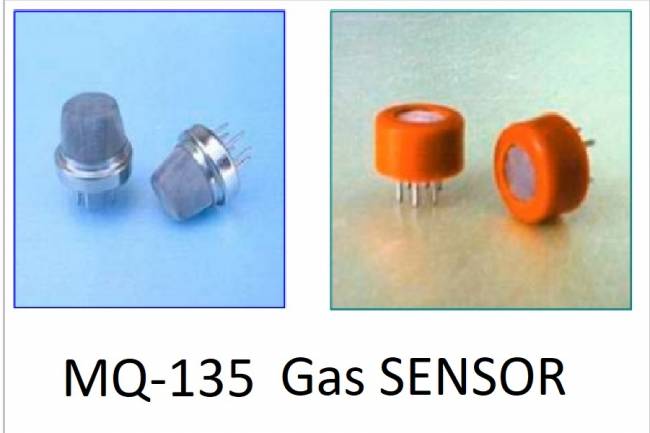
Designing an Air Quality Measurement System 2- MQ-135 Gas Sensor Review
MQ-135 Gas Sensor: A powerful sensor used to monitor air quality and detect gases. Offers precise measurement
02.10.2023
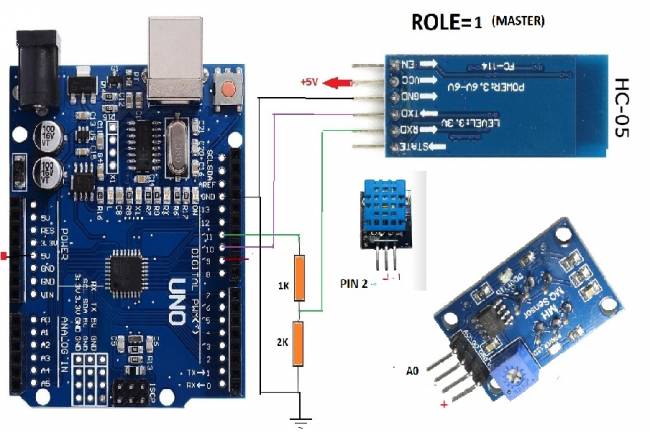
Designing an Air Quality Measurement System 3 - Measurement with MQ-135 and DHT-11
Designing an Air Quality Measurement System - Measurement with MQ-135 and DHT-11.
10.10.2023
Designing an Air Quality Measurement System 4 – Air Quality Monitoring Mobile Application
Air Quality Monitoring Mobile Application. Receive air quality data via Bluetooth, parse it in JSON format
10.10.2023