
11.Jan.2024
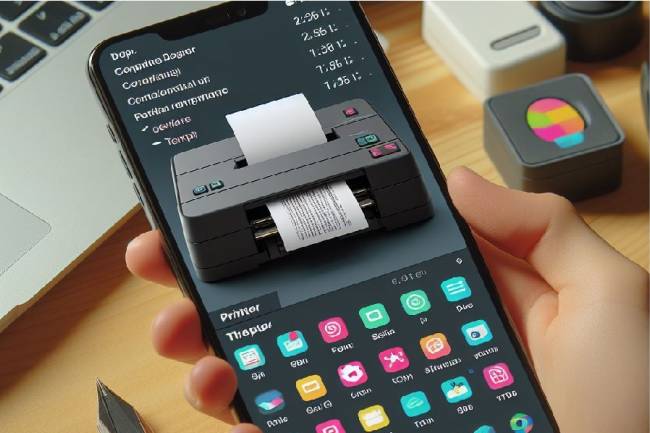
Bluetooth technology allows mobile applications to communicate wirelessly with various devices. Using this technology, it is possible to send data to a Bluetooth-enabled thermal printer with a mobile application developed with Flutter. In this article, we will explain step by step the process of developing an application with the Flutter framework and sending the text received from the user to a thermal printer connected via Bluetooth.
Project Description
In this project, a data entry box will be presented to the user. The data entry box is 3 lines high and will allow the user to enter text. There will be a button below. When the user clicks on this button, the text in the data entry box will be sent to a thermal printer connected via Bluetooth.
If Bluetooth is not connected, a text field at the bottom will show "Not Connected". During the data sending process, a sending message will be given to the user, and when the process is completed, the user will be informed that it has been sent successfully and printing will be performed.
Application Development Steps
1. Settings by Launching Project and Adding Bluetooth Package
First, the Flutter project must be created and the Bluetooth package named flutter_blue must be added.dependencies:
flutter:
sdk:flutter
flutter_blue: ^0.7.3
Then, the package should be added to the project with the flutter pub get command.
UI Design and Listing Bluetooth Devices
You can design UI with Flutter and list Bluetooth devices using the flutter_blue package.
// UI Design and Bluetooth Devices Listing Steps
Creating Data Sending Function to Bluetooth Device
Create a function to send the text received from the data input box to the selected Bluetooth device.
// Data Sending Function to Bluetooth Device
Information About Printer Commands Starting with ESC
When sending text to the printer, printer commands starting with ESC can be used. These commands allow the printer to make custom settings and edit text.
Example:ESC A 1 // Command to make bold text
Printer commands are usually sent via the ESC/P (Escape/Printer) command set, and this command set is used to control the functionality of printers. These commands provide the ability to specify various printer settings, text edits, and special printing modes. Printer commands often vary depending on the particular printer model and brand.
Here are some basic printer commands that are commonly used:
1. ESC @ (0x1B, 0x40): Initial Setting
The ESC @ command restores the printer's initial settings. It is usually used to reset the printer.
2. ESC A n (0x1B, 0x41, n): Font Setting
The ESC A n command determines the font. The value of n is often used as follows:
0: Normal characters
1: Bold characters
2: Italic characters
3: Underlined characters
3. ESC E n (0x1B, 0x45, n): Underline Setting
The ESC E n command turns underlining on (n value 1) or off (n value 0).
4. ESC M n (0x1B, 0x4D, n): Line Interline Setting
The ESC M n command determines the line spacing. The value of n is usually an integer between 0 and 255.
5. ESC d n (0x1B, 0x64, n): Paper Cutting Setting
The ESC d n command allows the paper to be cut in n lines.
6. ESC p x y dx dy (0x1B, 0x70, x, y, dx, dy): Bitmap Print Setting
The ESC p x y dx dy command is used to print bitmap images. x and y determine the starting position of the bitmap image, while dx and dy determine the dimensions.
7. ESC t n (0x1B, 0x74, n): Character Set Setting
The ESC t n command determines the character set to use. n is often used as follows:
0: USA (English)
4: Finland/Sweden
5: Italian
8. ESC @ (0x1B, 0x40): Initial Setting
The ESC @ command resets the printer and returns it to its initial settings.
These commands are commonly used to control the overall functionality of printers. However, command sets may vary depending on printer brands and models. It is important to consult the documentation for the printer to be used to learn which commands are supported and how to use them. Printer documentation usually describes supported ESC/P commands and their uses in detail.
By using such commands, you can make various adjustments on the printer.
Now let's look at the codes written in the Flutter environment. Below is an application for sending text to a printer with Bluetooth enabled.
import 'package:flutter/material.dart';
 import 'package:flutter_blue/flutter_blue.dart';
void main() {
    runApp(MyApp());
 }
class MyApp extends StatelessWidget {
    @override
    Widget build(BuildContext context) {
      return MaterialApp(
        title: 'Bluetooth Printer App',
        theme: ThemeData(
          primarySwatch: Colors.blue,
        ),
        home:MyHomePage(),
      );
    }
 }
class MyHomePage extends StatefulWidget {
    @override
    _MyHomePageState createState()=> _MyHomePageState();
 }
class _MyHomePageState extends State<MyHomePage> {
    FlutterBlue flutterBlue=FlutterBlue.instance;
    List<BluetoothDevice> devicesList=[];
    TextEditingController textController=TextEditingController();
   @override
    void initState() {
      super.initState();
      _startScanning();
    }
   void _startScanning() {
      flutterBlue.scanResults.listen((List<ScanResult> results) {
        for (ScanResult result in results) {
          if (!devicesList.contains(result.device)) {
            setState(() {
              devicesList.add(result.device);
            });
          }
        }
      });
     flutterBlue.startScan();
    }
   void _stopScanning() {
      flutterBlue.stopScan();
    }
   void _connectToDevice(BluetoothDevice device) async {
      _stopScanning();
      await device.connect();
      print('Connection established: ${device.name}');
    }
   void _sendData(BluetoothDevice device) async {
      List<int> data=[27, 64]; // ESC @ command (ESC character and @ character)
      data.addAll(textController.text.codeUnits);
     await device.writeCharacteristic(
        device.characteristics.firstWhere(
          (c)=> c.uuid.toString()=="00002a58-0000-1000-8000-00805f9b34fb", // Characteristic UUID to be sent to the printer
        ),
        data,
        type: CharacteristicWriteType.withoutResponse,
      );
    }
   @override
    Widget build(BuildContext context) {
      return Scaffold(
        appBar: AppBar(
          title: Text('Bluetooth Printer Application'),
        ),
        body: Column(
          children: [
            Padding(
              padding: const EdgeInsets.all(8.0),
              child: TextField(
                controller: textController,
                maxLines: 3,
                decoration: InputDecoration(
                  hintText: 'Enter text here...',
                  border: OutlineInputBorder(),
                ),
              ),
            ),
            devicesList.isEmpty
                ? CircularProgressIndicator()
                : Expanded(
                    child: ListView.builder(
                      itemCount: devicesList.length,
                      itemBuilder: (context, index) {
                        return ListTile(
                          title: Text(devicesList[index].name ?? 'Unknown Device'),
                          subtitle: Text(devicesList[index].id.toString()),
                          onTap: () {
                            _connectToDevice(devicesList[index]);
                          },
                        );
                      },
                    ),
                  ),
          ],
        ),
        floatingActionButton: FloatingActionButton(
          onPressed: () {
            if (devicesList.isNotEmpty) {
              _sendData(devicesList[0]); // Send to the device in the first list
            }
          },
          child: Icon(Icons.send),
        ),
      );
    }
 }

Mobile programming Fundamentals for Control Applications
Fundamentals of mobile application development for control of electronic systems
05.04.2023

With the Flutter-Dart language, can we write an artificial intelligence program that takes a picture and lists the objects in it?
Flutter-Dart language, artificial intelligence program
06.04.2023
Writing Applications that control Electronic Devices with Flutter-Dart Programming Language
Controlling Electronic Devices remotely
06.04.2023
Controlling Wifi Devices with Flutter-Dart
Control of remote devices with Android apps, Wifi-based control applications
07.04.2023
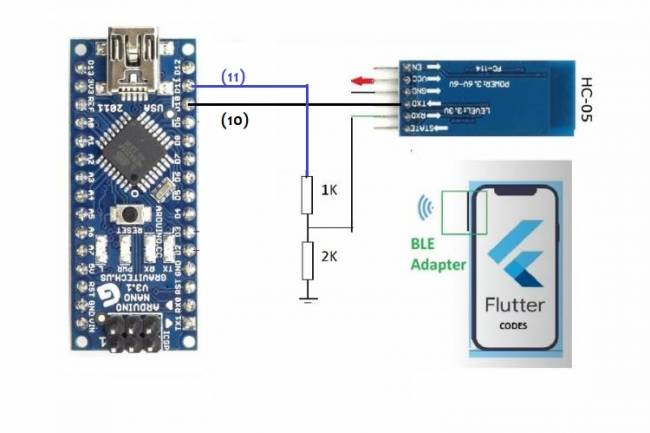
Application Development Example with Flutter and Arduino
Learn to connect mobile devices with embedded systems! In this article, learn step by step how to develop an app using Flutter and Arduino
01.03.2024
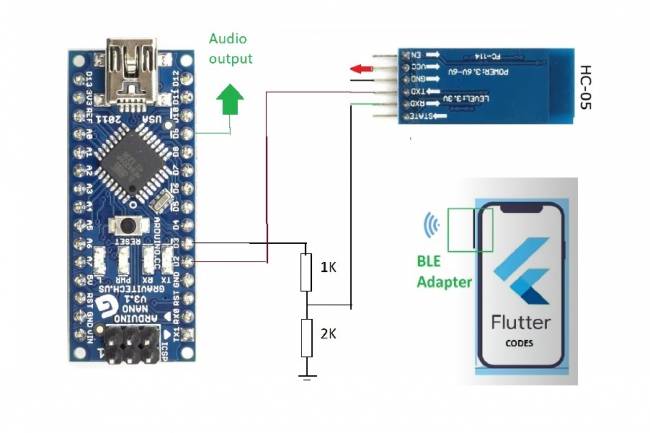
Bluetooth Speaker Project with Flutter - Audio data transfer
In this project we will try to understand how the Bluetooth speaker system is designed and how to develop it. We will examine the basics of Android programming, MCU programming-embedded system design.
24.07.2023
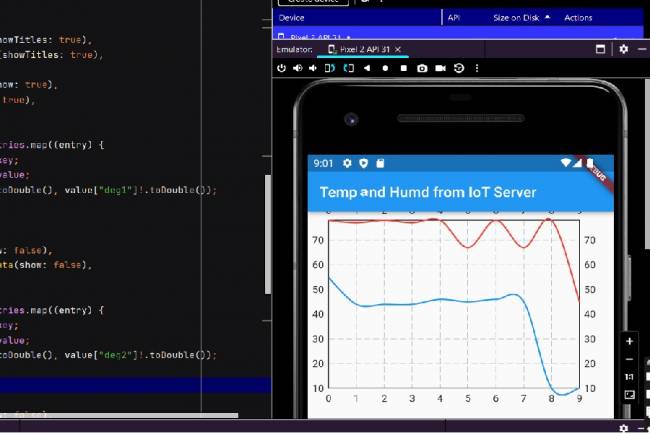
Extracting Data from Database and Creating Graphs with Flutter and PHP
Learn how to pull data from a database and create a line chart using Flutter and PHP
27.08.2023
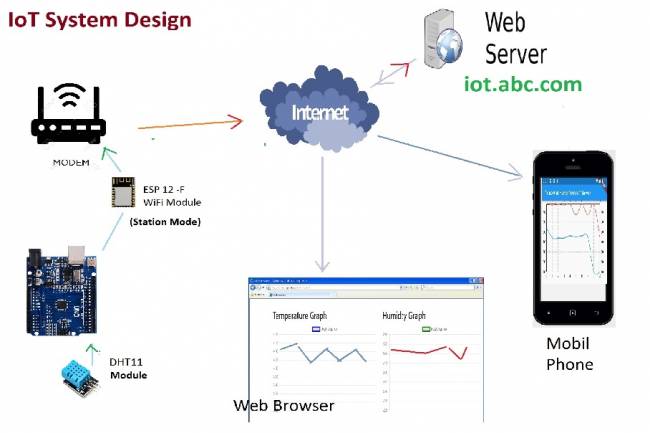
IoT System Design 1 – Temperature and Humidity Monitoring System
IoT system design with ESP 12f. Monitoring of temperature, humidity in web & mobile. Arduino, DHT11 sensor.
30.08.2023
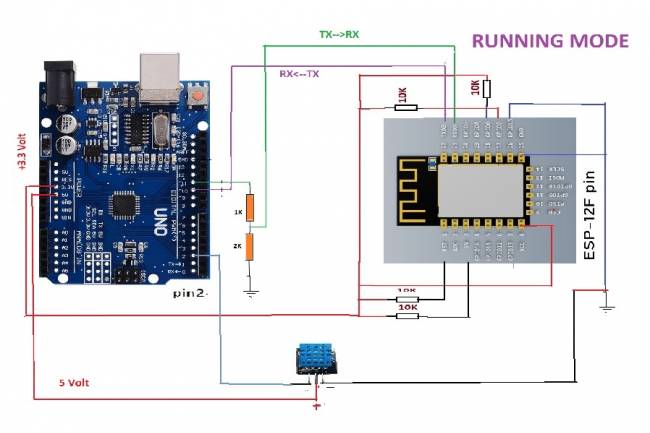
IoT System Design 2- Sending Temperature and Humidity Data to Web Server with Arduino
Learn the steps to send temperature and humidity data from DHT11 sensor with Arduino to web server via ESP 12f
30.08.2023
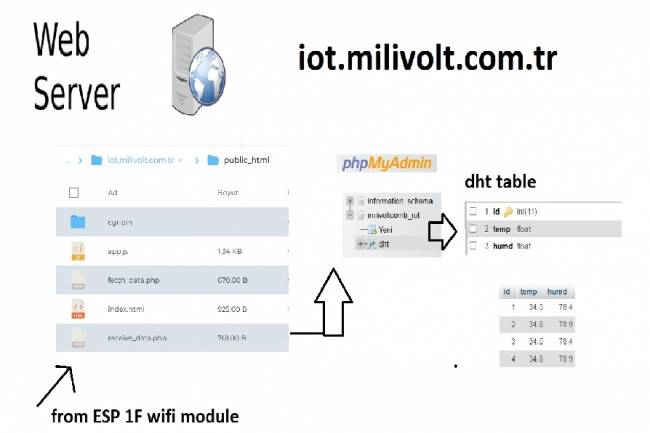
IoT System Design 3- Data Processing on the Web Server Side
Learn to transmit data from DHT11 sensor with Arduino to web server via ESP8266 and save it to database with PHP.
30.08.2023
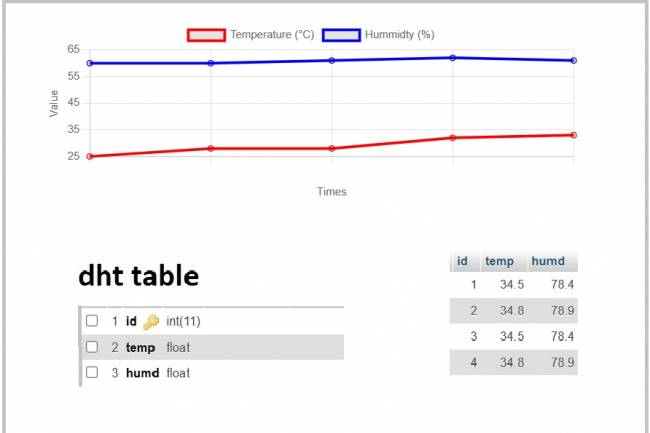
IoT System Design 4- Creating a Web Interface
Learn how data is pulled from the IoT system and used graphically.
30.08.2023
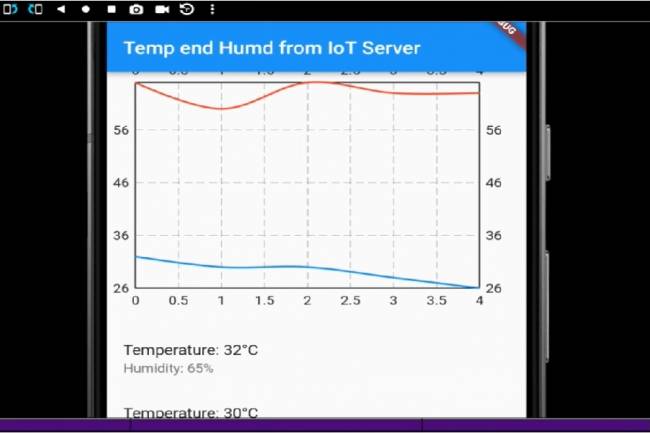
IoT System Design 5- Mobile Application Visualizing IoT Data with Flutter
Code descriptions of an application that pulls, graphs, and lists IoT data with Flutter.
30.08.2023
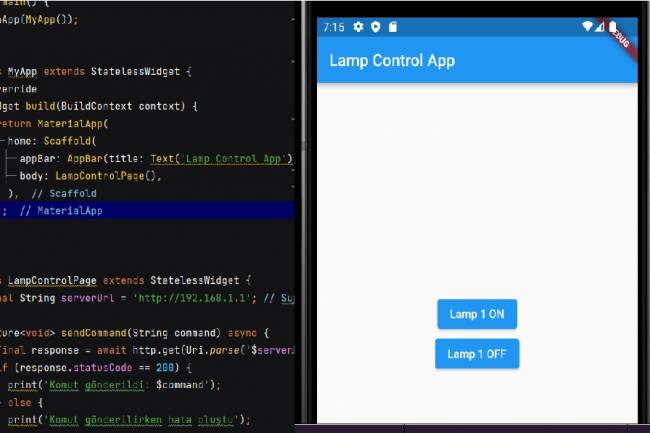
Mobile Application Development for Smart Homes
In this article, you can find the steps and examples of mobile application development using WiFi communication
01.09.2023
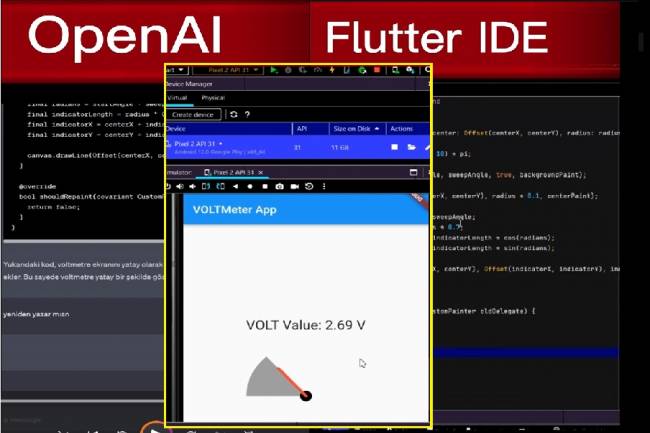
Developing Mobile Applications with Artificial Intelligence – Voltmeter Interface Application
The mobile application developed with artificial intelligence visualizes the microcontroller volt measurement with numerical data.
12.09.2023
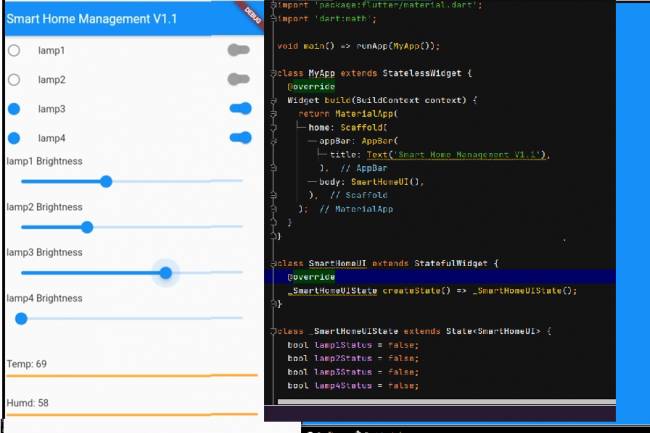
Mobile Application Interface Development Study for Smart Homes
Ways to develop mobile applications with Flutter for smart home and workplace systems
16.09.2023
Designing an Air Quality Measurement System 1 – Basic definitions of Air Quality
Air Quality Measurement System design and air quality parameters. PM2.5, CO, NO2, O3, SO2 measurement
02.10.2023
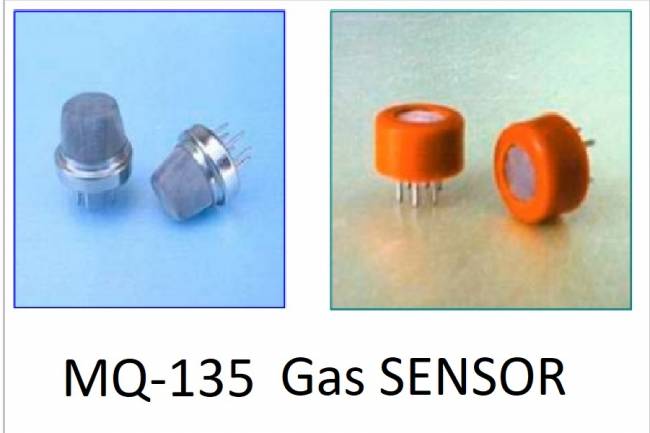
Designing an Air Quality Measurement System 2- MQ-135 Gas Sensor Review
MQ-135 Gas Sensor: A powerful sensor used to monitor air quality and detect gases. Offers precise measurement
02.10.2023
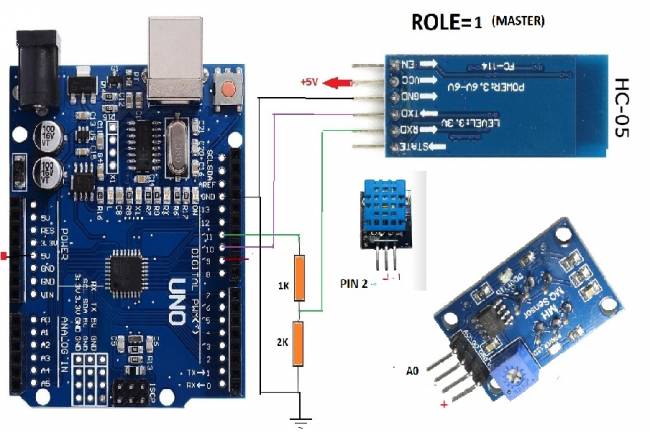
Designing an Air Quality Measurement System 3 - Measurement with MQ-135 and DHT-11
Designing an Air Quality Measurement System - Measurement with MQ-135 and DHT-11.
10.10.2023
Designing an Air Quality Measurement System 4 – Air Quality Monitoring Mobile Application
Air Quality Monitoring Mobile Application. Receive air quality data via Bluetooth, parse it in JSON format
10.10.2023