

25.Feb.2023
We continue our Bluetooth applications. This application is similar to the previous Bluetooth led lighting application. This time we connected the pin to the relay input to light the LED and applied a 220 volt lamp on-off.
You can watch our youtube video about the application:
We coded the Android application withFlutter-Dart. There are three buttons on the application. One is the “Connect” button, the others are on and off buttons. On/off buttons send "on" and "off" information to the bluetooth module connected to Arduino on the bluetooth adapter. When the Arduino program receives this information, it turns the lamp on or off.
Below are the Flutter-Dart codes:
Arduino codes are below:
#include <SoftwareSerial.h>
SoftwareSerial mySerial(10, 11); // RX, TX
String rec_data="off"; // closed
void setup() {
pinMode(9, OUTPUT);
Serial.begin(9600);
mySerial.begin(9600); // BlueTooth Data baud,set the data rate for the SoftwareSerial port
}
void loop() { // run over and over
if (mySerial.available()) {
rec_data=mySerial.readString();
if(rec_data=="on"){digitalWrite(9, HIGH);} // RELAY out ---> pin 9---> on
if(rec_data=="off"){digitalWrite(9, LOW);} // RELAY out ---> pin 9 --- off
Serial.println(rec_data);
delay(100);
}
}
How to make a night light with Bluetooth control and three colors?
A practical and inexpensive night light design with Bluetooth control
03.03.2023
Measuring DC Volts with Android Phone - Voltmeter
Converting an old tablet computer to a voltmeter (with bluetooth)
04.03.2023
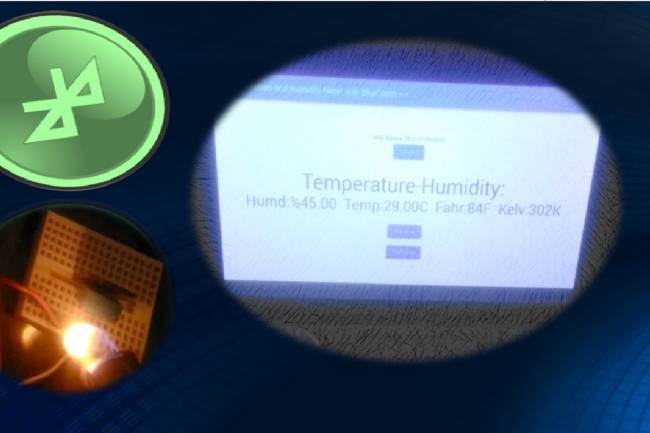
We make temperature and humidity detection system with Android device
Android apps
05.03.2023

A BlueTooth-controlled Android App to Measure Heart Rate
An application related to biomedical devices: Measuring heartbeats
08.03.2023
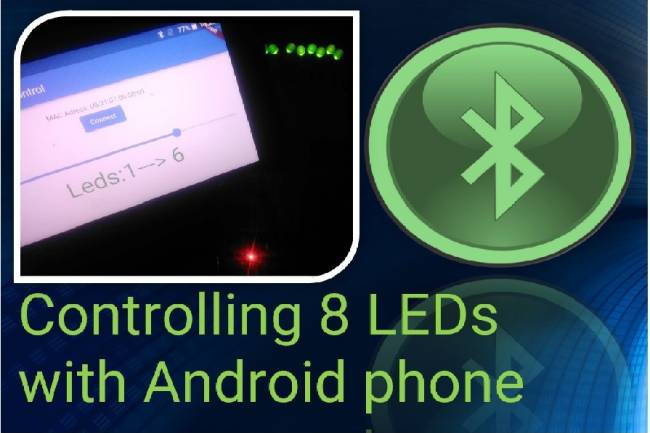
Controlling 8 LEDs with Android phone
Android apps with Bluetooth Module
13.03.2023
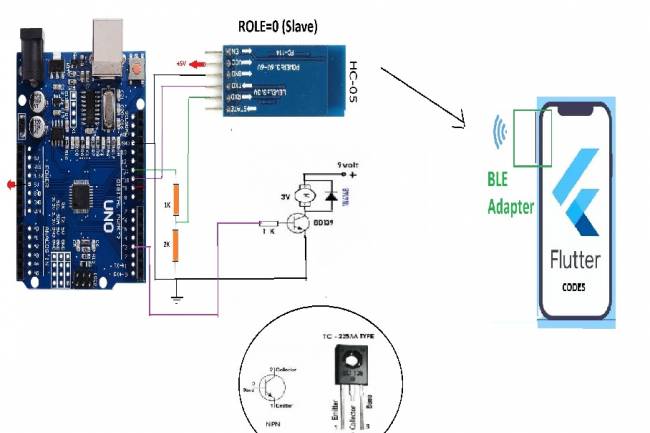
DC Motor Speed Control by Android phone
Android Mobil Apps
14.03.2023
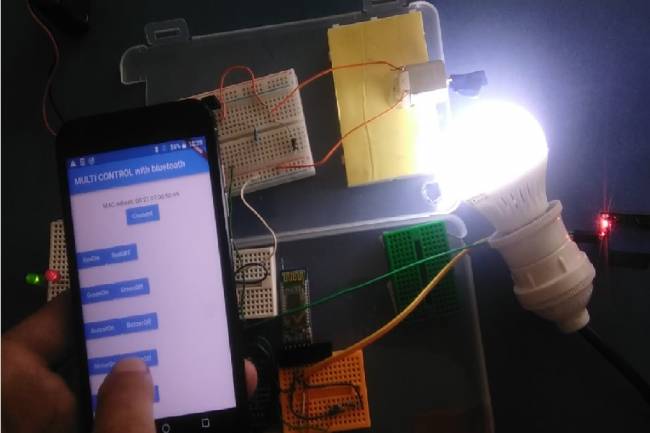
Controlling multiple devices with Android phone
Android Apps with Bluetooth
15.03.2023
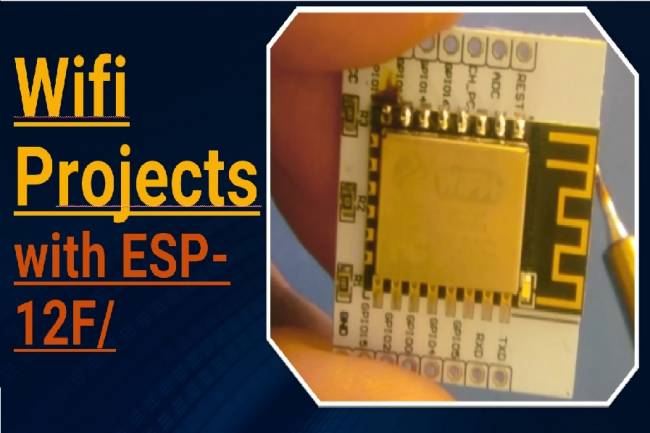
Projects with Wifi Module
Wifi module settings
20.03.2023
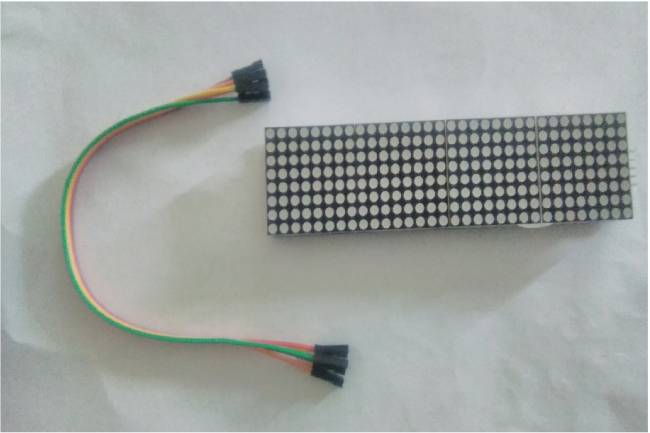
Application to Control Led Matrix Panel with Android Phone - Part 1
Led Panel-Bluetooth Apps
29.03.2023

Designing an IoT System
Designing an IoT system for personal and business
22.05.2023

Reading the Weather Using the GSM Module Connected to the Microcontroller
How to make weather reading application with GSM module
24.05.2023
Smart Homes Can Be Smarter Than Us.
I'm Programming My House.
18.12.2022

IoT impact in the Healthcare Industry
What is the level of applications of IoT objects in the health sector?
22.12.2022

Application of IoT(Internet of Things) Technologies to Animals
Animals on the Internet
23.12.2022

Smart Cars in the IoT Universe
The evolution of Smart Cars
24.12.2022
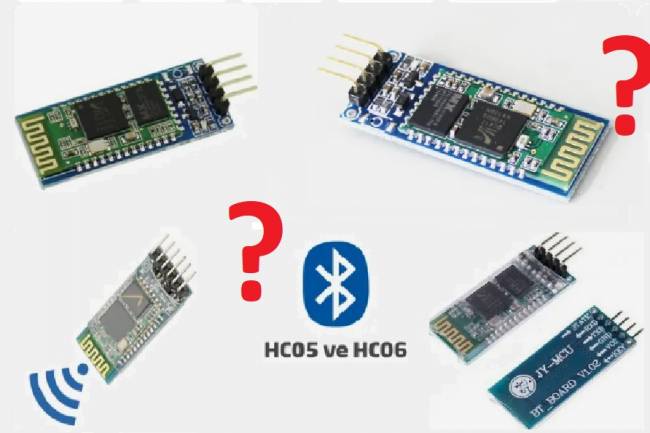
Use of HM-10, HC-06 and HC-05 Bluetooth Modules in IoT Projects
Use of HM-10, HC-06 and HC-05 Bluetooth Modules
23.01.2023
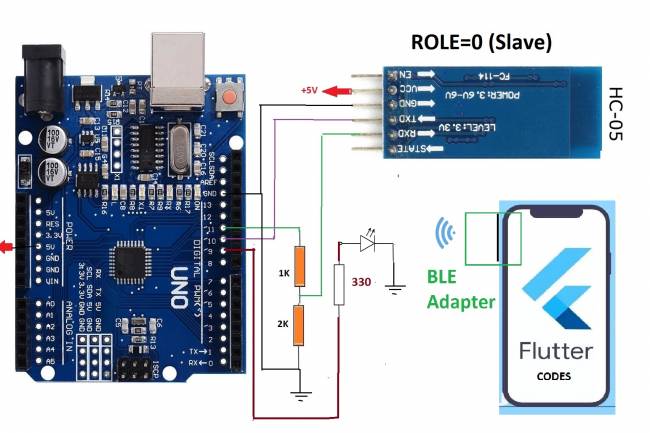
Led Control Application with HC-05 Bluetooth Module
Led Control with Android Phone-Flutter
25.02.2023

Electronic Organ Construction with HC-05 Bluetooth Module
Electronic organ design with the program written with Flutter-Dart codes
25.02.2023
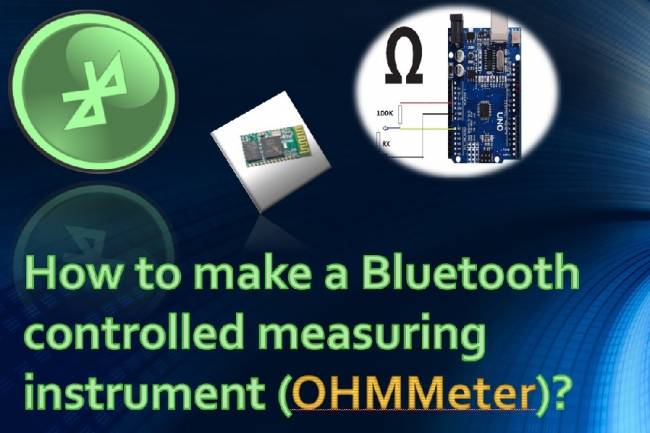
Measuring resistance by phone to Android
Measuring resistance by phone to Android( with Flutter-Dart)
02.03.2023